SectionBalance · User guide
Your SectionBalance guide.
Find your screen, follow the steps, and check the result. Open More detail only when you need it.
User guide · Updated October 21, 2026 · Version 1.1.0 build 86 · Prelaunch
This guide was compared with frozen build 86 source. SectionBalance is not a public App Store release; this documentation update does not indicate App Store approval or release. Your installed version may differ.
Public help assistant
Ask about SectionBalance
Get a short answer from the public guide. This assistant cannot see your account, schedules, team, subscription, or support tickets.
Do not enter names, email addresses, private links, invitation codes, passwords, or schedule details. For account-specific help, use Settings → Contact support in the app.
Start here / The process at a glance
Set up once. Schedule, share, and improve.
SectionBalance assigns your available team members to the establishment's service areas, plans breaks and rotations, and helps balance access to opportunity. Managers review the result before sharing it with the team.
- Define the work.In Settings, describe floors, sections, opening hours, and opportunity scores. Optional coverage plans define how sections are grouped as staffing changes.
- Add the team and rules.In Team, enter people and their shifts. In Settings → Scheduling, configure days off, breaks, and rotation rules.
- Generate and review.Choose the week on Schedule, then generate from Home. Review assignments on Schedule, export the Roadmap PDF when you want an offline check, and resolve findings from Home → Needs review.
- Publish and keep everyone informed.Publish from Home. Team members view and acknowledge their schedules on private web pages. Managers create and approve work on Tasks; team members claim and submit it on their pages.
- Monitor and improve.Use score analysis to review fairness and Settings → Backups & schedule health for reports and recovery. Update configuration as operations change.
Managers use the native iPhone or iPad app. Team members use their private browser pages. SectionBalance supports scheduling decisions; it does not predict earnings or replace the manager's final review.
01 / Manager guide
Know what SectionBalance records mean
SectionBalance supports current schedule planning and delivery. It does not replace your employment, payroll, or regulatory record systems.
Planned schedules are not actual time
Where: Manager app → Schedule
A shift or assignment in SectionBalance shows what was planned. It is not proof of clock-in, clock-out, attendance, hours actually worked, wages, tips, payroll, or benefits.
Before you continue: Use your organization's approved payroll and timekeeping systems for actual work and compensation records.
Keep sensitive employment records elsewhere
Where: Manager app → Team, Days off, Tasks, rules, and support
Do not enter medical or accommodation details, immigration information, discipline, termination reasons, performance reviews, hiring decisions, pay or tax data, or guest complaints in SectionBalance.
Your organization controls retention
Where: Manager app → Reports and Privacy & Data
The establishment determines which records it must keep, exports required records to its approved record system, and applies the required retention period. Kithiva does not represent that SectionBalance alone satisfies employment-record obligations.
What happens next: Follow your organization's records policy before account closure or deletion.
Fairness is not performance
Where: Manager app → Team → View score analysis
Opportunity analysis explains how planned assignment opportunity is distributed. It is not an earnings estimate, attendance record, performance rating, or recommendation for an employment action.
Before you continue: Recognition points and information from connected products such as Rapport or Welcome are never used to assign shifts, hours, sections, or opportunity.
02 / Manager guide
Set up your establishment
Start with your work areas, people, and rules. Then create a draft to review.
Account and establishment
Where: Manager app → Settings → Establishment
Check that you are working in the right establishment and time zone.
- Sign in to your manager account.
- Open Establishment and check its name and time zone.
What happens next: Schedule and task times use this time zone.
First-week checklist
Where: Manager app → Home
Set up the work areas, then the people and rules.
- Create your floor plan, sections, and opening hours in Settings.
- Add people and working hours in Team.
- Set up coverage plans if you want sections grouped automatically.
- Save your break and rotation rules in Settings → Scheduling.
- Choose the week on Schedule.
- Return to Home, generate a draft, and review it before publishing.
What happens next: Publishing shares the reviewed schedule with the team.
Show or hide the setup guide
Where: Manager app → Home
Hide the checklist when you no longer need it.
- Use the hide option on the Home setup checklist.
- To show it again, open Settings → Help Center and turn on Show setup checklist on Home.
What happens next: Your settings and schedules are unchanged.
Use SectionBalance on iPad
Where: Manager app → Home, Schedule, Team, Tasks, and Settings
Build 86 runs natively on iPhone and iPad with iOS 17 or later. On a wide iPad window, use the sidebar; narrow windows use tabs. Rotate or resize the iPad window without losing your selected screen, navigation, or an open editor draft.
- Use Command-1 through Command-5 with a hardware keyboard to select the five main screens.
- Scroll the sidebar or form if larger text leaves controls below the visible area. Supported Cancel and Close controls also respond to Escape.
- On Schedule, scroll the day row when necessary. VoiceOver reads the full localized date and identifies the selected day.
What happens next: The app uses a light appearance for readable forms. Multiple app windows are not supported.
Coordinate a shared-workspace upgrade
Where: Manager app → Settings → Backups & schedule health
Before a shared-workspace pilot upgrade, the primary manager should keep a full backup and record its date and app version. Update every primary and delegate manager device together before editing resumes.
Before you continue: Do not resume editing that workspace with build 77. Older versions can lose the ownership information that distinguishes two people with the same name. Contact support before attempting a rollback; a PDF or CSV is not a full workspace backup.
Import setup across time zones
Where: Manager app → Settings → Establishment → Setup template → Import Setup Template
A setup template transfers configuration and may include roster information; it is not a schedule backup. Import is a primary-manager action that replaces the setup and clears generated schedules and other operational workspace data after creating a safety backup.
Before you continue: Do not use a setup template to recover schedules. Use a full workspace backup for recovery.
- Keep a full backup before importing and check that this is the intended establishment.
- Review the imported time zone and the selected week before generating. Build 86 preserves the same calendar week when the template changes the time zone; for example, October 5–11 remains October 5–11 when moving from New York to Denver.
- Check the roster, floor plans, and rules, save online, generate and review the week, then publish when ready.
03 / Manager guide
Explore Juniper House Demo
Explore this fictional establishment before setting up your own.
Start safely
Where: Manager app → New-account setup
Choose Explore a sample establishment during new-account setup. Juniper has two floors, four sections, and seven fictional team members. No schedule is bundled: you generate the first week yourself.
Before you continue: Use an empty test account. The sample does not replace an existing establishment.
Establishment and physical sections
Where: Manager app → Settings → Floors & coverage plans → Juniper House Demo
Juniper is open 24 hours, every day, in Denver time. Its four sections have different opportunity scores so you can explore fair assignments.
| Floor | Section | Opportunity score |
|---|---|---|
| Lower | L1 | 80 |
| Lower | L2 | 60 |
| Lower | L3 | 100 |
| Upper | U1 | 30 |
What happens next: Higher scores mean greater earning opportunity, not a prediction of earnings.
Coverage plans and assignments
Where: Manager app → Settings → Floors & coverage plans → Juniper House Demo → Configure coverage plans
Automatic coverage plans are enabled, with simple plan labels selected initially. Server counts apply to each floor, not the establishment total.
See the illustrated example →- Lower Solo — one server: All Lower covers L1 + L2 + L3.
- Lower Pair — two servers: L12 covers L1 + L2; L3 covers L3.
- Lower Trio — three servers: L1, L2, and L3 are separate assignments. This is included for future roster experiments; the supplied staffing does not normally use it.
- Upper Solo — one server: All Upper covers U1.
- When a server takes a break, the applicable staffing plan changes. Saved assignment groups remain intact.
Seven staggered eight-hour shifts
Where: Manager app → Team → select a team member
The seven shifts overlap to provide day and overnight coverage.
Before you continue: These daily shifts are for training, not a recommended seven-day workweek.
| Person | Start | End |
|---|---|---|
| Alex | 6 AM | 2 PM |
| Blake | 8 AM | 4 PM |
| Casey | 2 PM | 10 PM |
| Drew | 4 PM | Midnight |
| Emery | 8 PM | 4 AM next day |
| Finley | 10 PM | 6 AM next day |
| Gray | Midnight | 8 AM |
Business and rotation rules
Where: Manager app → Settings → Scheduling → Scheduler rules
Open Settings → Scheduling → Scheduler rules to inspect the saved rules and their priorities.
- Required: each section has only one assigned server at a time.
- Required: one server must not cover multiple floors unless an open section has no alternative available server. Limited cross-floor coverage can therefore occur during breaks.
- Required rotation rule: aim for at least 120 minutes on the same section or configured assignment when coverage permits; rotate after at most 120 minutes. Breaks pause, rather than reset, time on the same assignment.
- Fairness: start in a different section each week where feasible. The first generated week has no previous-week baseline. This preference does not guarantee every person's start changes.
Break profiles and task policy
Where: Manager app → Settings → Scheduling → Scheduler rules
The demo's eight-hour shifts each require one 30-minute break. Only one person can be on break at a time.
- Wait at least 3 hours after shift start before a break.
- Finish the break at least 1 hour before shift end.
- Aim for no more than 4 hours of continuous work.
What happens next: Review any break exceptions before publishing.
More detail: Longer shifts
9 to under 10 hours: two required breaks; maximum continuous work of 180 minutes. 10 hours or more: two required breaks; maximum continuous work of 180 minutes. These longer-shift profiles are ready for experiments if you change the roster. A break that cannot be scheduled while preserving sole-server coverage requires review. Consult the Scheduling rules section for timing precedence and review any exceptions. Recognition points remain visible, but they never affect scheduling.
A guided tour of the configuration
Where: Manager app → Home
Explore the existing settings before changing anything. No schedule is bundled with this demo.
- In Settings, open Juniper's floor plan and review its sections and coverage plans.
- In Team, open a person and review their shift.
- In Settings → Scheduling → Scheduler rules, review breaks and rotations.
- On Schedule, choose a week. Return to Home and tap Generate.
- Review assignments and breaks on Schedule. Check any Needs review findings on Home.
- Try the following week, then compare. Change just one setting at a time.
What happens next: Use Export Setup Template to keep the configuration. Use a backup to keep schedules too.
More detail: A closer look at each setting
Explore the existing settings before changing anything. No schedule is bundled with this demo.
- Settings → Establishment: confirm Juniper House Demo and America/Denver.
- Settings → Floors & coverage plans → Juniper House Demo: inspect the two floors, four sections, opening hours, and opportunity values.
- In that floor-plan editor, open Configure coverage plans. Inspect Lower Solo, Lower Pair, Lower Trio, and Upper Solo. Try Plan labels and sections to connect each short assignment label to its physical sections.
- Team → select a member: review their recurring shift. Settings → Scheduling → Scheduler rules: review rotation and break profiles. Tasks → Opportunity policy: inspect the disabled task-point option.
- Schedule: choose the week using the week selector, which is available only on this screen. Home: check the active floor plan and coverage-plan indicator, then Generate.
- Schedule: inspect day and overnight assignments, break-driven plan changes, and both team and section views. Team → View score analysis: compare opportunity. Review Health & recovery findings before publishing.
- Generate the following week to explore the different-start preference. Change one setting at a time, save, regenerate, and compare. Use Export Setup Template to keep a reusable configuration; templates do not preserve generated schedules.
04 / Evaluation guide
Evaluate SectionBalance safely
Use fictional information first, then move toward real schedules in controlled steps.
Install the beta with TestFlight
Where: iPhone or iPad → TestFlight
During beta testing, Apple TestFlight delivers SectionBalance and its updates. Install Apple's free TestFlight app, accept the invitation, and install SectionBalance from TestFlight.
- Accept the invitation using the address selected by your testing lead.
- Install SectionBalance from TestFlight.
- Open new builds from TestFlight when an update is announced.
- Use Send Beta Feedback to report a problem, preferably with a screenshot and the affected week, date, time, and person.
What happens next: A TestFlight build can be tested for up to 90 days. TestFlight access is for evaluation and does not by itself approve production use.
More detail: Apple's TestFlight guidance
Apple explains beta installation and feedback at https://developer.apple.com/testflight/ and https://developer.apple.com/help/app-store-connect/test-a-beta-version/testflight-overview.
Use a testing lead
Where: Your organization's pilot plan
Choose one person who understands current scheduling practices and can coordinate managers, team members, feedback, and decisions.
- Name one testing lead and a backup.
- Include two or three managers who regularly create or supervise assignments.
- Include a small group of experienced team members who can assess whether assignments are practical and fair.
- Involve IT, security, privacy, or procurement before real employee information or production use is approved.
Follow a staged evaluation
Where: Manager app and your organization's pilot plan
A three- to four-week evaluation is usually long enough to learn the workflow, compare multiple schedules, and test controlled publishing.
Before you continue: Do not enter real employee information until the appropriate business owner and internal reviewers authorize that stage.
- Learn with Juniper House Demo and fictional information.
- Create a representative floor plan, coverage plans, rules, and fictional roster for your operation.
- With permission, enter selected real schedule information. Generate two or three weeks and use each week's Roadmap PDF to compare the result with normal manager decisions. Do not publish yet.
- After operational and data-use approval, publish selected weeks to a small test group and collect manager and team-member feedback.
Decide whether to adopt
Where: Roadmap PDFs, Schedule, Needs review, and pilot feedback
Judge the product across several weeks, not from one assignment or one person's result.
- Confirm that required sections are covered and breaks and rotations are operationally valid.
- Review whether access to higher- and lower-opportunity work becomes reasonably balanced over time.
- Count avoidable manual corrections and inaccurate Needs review findings.
- Assess manager time saved and whether managers can understand and explain the schedule.
- Confirm that Roadmap reports, publishing, team pages, acknowledgements, and tasks communicate changes clearly.
- Document remaining risks, owners, training needs, and the manual fallback before approving production use.
What happens next: A successful evaluation means the schedules are valid, fair, understandable, and consistently reduce management effort; they do not need to be identical to a manually created schedule.
05 / Manager guide
Floors, sections, and special dates
Describe where your team works and when those areas are open.
Create the physical layout
Where: Manager app → Settings → Floors & coverage plans → Edit floor plan
A floor plan contains your floors. Each floor contains the sections a server can cover.
- Add a floor plan.
- Add its floors and sections.
- Set the days and hours each section is open.
- Save the floor plan.
What happens next: Your work areas are ready for coverage plans and scheduling.
More detail: Create the physical layout
Add a floor plan, then floors, then sections within each floor. Floor names must be unique within a floor plan; section names must be unique within a floor. Enter operating days and hours for each section.
Set opportunity scores
Where: Manager app → Settings → Floors & coverage plans → Edit floor plan
Give each section a score from 1 to 100. Higher scores mean better earning opportunity compared with other sections.
- Open the section you want to edit.
- Set its opportunity score and save.
- Generate a new draft to use the change.
What happens next: The scheduler uses these scores to help balance assignments. Scores are not an earnings estimate.
Duplicate a plan
Where: Manager app → Settings → Floors & coverage plans → New floor plan (+) → Duplicate existing floor plan
Copy an existing floor plan to save setup time.
Before you continue: Check copied dates before generating: the copy may apply on the same dates as the original.
- Tap New floor plan (+), then Duplicate existing floor plan.
- Choose the plan to copy.
- Rename it and make your changes.
- Check its coverage plans and the dates it applies.
- Save.
What happens next: The original stays unchanged.
More detail: Duplicate a plan
Reuse a complete floor plan for a seasonal layout or special event instead of rebuilding it. The copy includes all floors and sections, section opportunity scores and operating hours, coverage plans and their assignment names and section selections, and coverage-plan enablement and display settings. It also copies the original weekdays, priority, and date settings, but is not marked as the default plan. The original remains unchanged.
- Open Settings → Floors & coverage plans. Tap New floor plan (+) → Duplicate existing floor plan, then select the source plan. This opens an editable copy before saving.
- Rename the copy and edit its floors, sections, opportunity scores, and opening hours as needed.
- Review when the copy applies: copied weekdays and dates may overlap the original. Set the intended special dates or date range, review priority, and choose the default plan deliberately.
- Open Configure coverage plans and review every staffing level, especially after adding or removing sections. Each plan must cover every relevant section exactly once.
- Save the copy and verify which floor plan is active before generating. Alternatively, swipe left on a floor-plan row and tap Duplicate to save a copy immediately, then open it to edit. Copies count toward your floor-plan limit.
What can be duplicated?
Where: Manager app → Settings → Floors & coverage plans
You can duplicate a whole floor plan or a team member. To copy floors, sections, and coverage plans together, copy their floor plan.
More detail: What can be duplicated?
Duplicate is available for whole floor plans and team members. There is no separate Duplicate action for an individual floor, section, coverage plan, assignment group, scheduling rule, or task. To reuse floors, sections, and coverage plans together, duplicate their parent floor plan. Create suggested plans is a separate setup shortcut for coverage plans, not a copy action.
Choose when it applies
Where: Manager app → Settings → Floors & coverage plans → Edit floor plan
Choose when a floor plan should be used.
- Open the plan and review its weekday and date settings.
- Choose specific dates for a one-off event, or a date range for a season.
- Save and check the active plan before generating.
What happens next: For example, select December 24 and December 31 for a holiday layout.
More detail: Choose when it applies
Use weekday settings, effective dates, or selected dates for special operations. For a plan used only on December 24 and December 31, select those dates instead of changing the normal plan for every week. Confirm the active plan for the week before generating.
06 / Manager guide
Automatic coverage plans
Sections are the places. A coverage plan divides those places for a staffing level. An assignment is one person's share.
How a floor becomes assignments
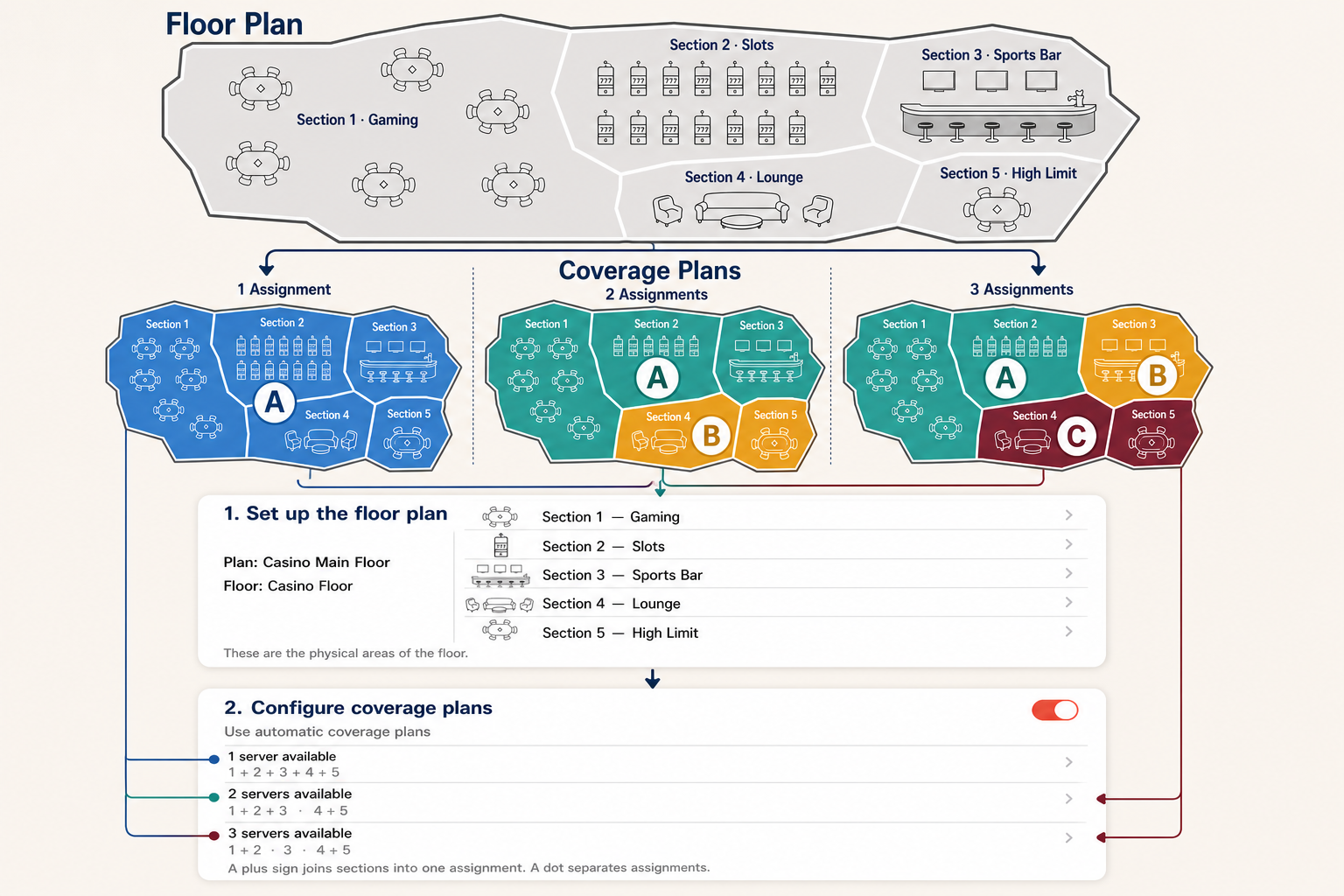
Turn on and create plans
Where: Manager app → Settings → Floors & coverage plans → select floor plan → Configure coverage plans
Coverage plans divide a floor's sections among the servers available on that floor.
- Turn on Use automatic coverage plans.
- Choose the fewest and most servers you expect on each floor.
- Tap Create suggested plans.
- Review the assignments and save.
What happens next: The app chooses the matching plan as staffing changes.
More detail: Turn on and create plans
Enable Use automatic coverage plans on the floor plan. Choose the fewest and most servers expected, then Create suggested plans. Suggestions keep adjacent sections together and balance opportunity scores; existing configured plans are preserved. Review suggestions before relying on them.
Assignment-first editing
Where: Manager app → Settings → Floors & coverage plans → select floor plan → Configure coverage plans
Choose what each server will cover.
- Open a staffing level, such as Lower Pair for two servers.
- Select an assignment and choose its sections.
- Repeat for the other assignment.
- Check that every section appears once, then save.
What happens next: In the demo, one assignment covers L1 + L2 and the other covers L3.
More detail: Assignment-first editing
Choose a staffing level and start with an assignment such as S1. Select its floor sections, then repeat for the remaining assignments. Selecting a section already used elsewhere moves it rather than duplicating it.
- Every floor section must appear exactly once.
- Every assignment must contain at least one section.
- The number of assignments must match the plan's server count.
- Plan names must be unique within the floor plan; assignment names must be unique within their plan.
- Use the full plan and assignment name when comparing groups: S1 in a 2-server plan need not cover the same sections as S1 in a 5-server plan.
Availability is floor-specific
Where: Manager app → Settings → Floors & coverage plans → select floor plan → Configure coverage plans
The server count applies to this floor, not the whole establishment. People on break or outside their working hours are not available.
What changes during a break?
Where: Manager app → Settings → Floors & coverage plans → select floor plan → Configure coverage plans
When a server takes a break, the app uses the plan for fewer available servers. When they return, it uses the larger plan again.
What happens next: For example, Lower Pair becomes Lower Solo when one of the two Lower servers takes a break.
Missing or invalid plans
Where: Manager app → Settings → Floors & coverage plans → select floor plan → Configure coverage plans
A warning means the app could not use the expected coverage plan.
- Open the floor plan and its coverage plans.
- Check that the needed server count has a plan.
- Check that each section appears exactly once.
- Save and generate the week again.
What happens next: Review the new schedule before publishing.
Choose a display option
Where: Manager app → Settings → Floors & coverage plans → select floor plan → Configure coverage plans
Choose how assignments are labelled.
- Use Section details to show the physical sections.
- Use Simple plan labels to show the plan and assignment names.
- Use Plan labels and sections to show both while learning.
What happens next: This changes the labels, not who is assigned.
07 / Manager guide
Team roster and availability
Tell the app who works and when they are available.
Add a person
Where: Manager app → Team → Add team member
Add a team member and their working hours.
- Tap Add team member on Team.
- Enter their name, email, optional phone number, and role.
- Save, then open their profile to set working days and hours.
What happens next: The person can be included when you generate a schedule.
Duplicate a team member
Where: Manager app → Team → member card → three-dot menu → Duplicate
Copy a member who has similar working hours.
Before you continue: Do not share the original member's private page link with the new person.
- Open their card's three-dot menu and tap Duplicate.
- Open the new copy and choose Edit.
- Replace the name and enter the new person's email.
- Check their working hours and save.
What happens next: The new member has a separate record and starts with zero awarded points.
More detail: Duplicate a team member
Use an existing member as a starting point when a new person has a similar role and weekly shift pattern. Duplicate copies the role, employment status, normal working days and shift hours, and preferred language into a separate member record. It adds Copy to the name, clears email and phone, resets task points to zero, and assigns a new badge color. It does not copy the source person's assignment records or published team-page link.
- On Team, open the three-dot menu on the source member's card and choose Duplicate. The new member is added immediately and counts toward your team-member limit.
- Open the new card's menu → Edit. Replace the copied name, enter the new person's required email and optional phone, and verify role and employment status before saving.
- Open the new person's profile and review every working day, start time, and end time. Check their preferred language and configure any person-specific days off or scheduling rules separately.
- Save, generate the affected schedule, review it, and publish when ready. Do not share the source person's private team-page link with the new member.
Normal shifts and overnight work
Where: Manager app → Team → team member profile
Enter an overnight shift on the day it starts. For example, Monday 6:00 PM–4:00 AM ends on Tuesday morning.
- Enable the working day.
- Enter the start and end times.
- Save the member.
What happens next: Do not add a second shift at midnight for the same overnight work.
Reuse hours across working days
Where: Manager app → Team → member card → three-dot menu → Edit → Set all working days
Set the same hours on several working days at once.
- Enable the person's working days.
- Under Set all working days, enter the start and end times.
- Tap Apply hours to all working days.
- Adjust any exceptions, then tap Save team member.
What happens next: Days that are switched off stay off.
Dated days off
Where: Manager app → Settings → Scheduling → Days off
Use Days Off when a scheduled shift is canceled for one date. This leaves the person's normal weekly hours unchanged.
Before you continue: Do not also use Add/Modify Shift for the same canceled shift. One dated day-off record is enough.
- Open Days Off.
- Add the member and date.
- Save, then regenerate the affected week.
What happens next: Review the new draft and publish it when ready. The normal weekly shift remains available on other dates.
Late start, early finish, or temporary added shift
Where: Manager app → Schedule → select the work week and date → Add/Modify Shift
Use Add/Modify Shift for a one-date change. It does not change the person's normal weekly schedule.
- Confirm the selected work week and date before changing anything.
- Select the team member and check the preloaded effective hours.
- Enter only the hours that apply on that date and save.
- Generate the affected week, review the draft and publish it when ready.
What happens next: To remove a date-specific change, open Add/Modify Shift for the same person and date and choose Remove date-specific shift. The normal weekly hours apply again after you regenerate.
More detail: Team member will start late
Select the team member. SectionBalance preloads the shift that applies on that date. Move Start to the later arrival time, leave Finish unchanged, and save.
More detail: Team member will leave early
Select the team member. Keep Start unchanged, move Finish to the earlier departure time, and save.
More detail: Team member will work a temporary added shift
Select the team member and turn Working on this date on. Enter the exact start and finish times, then save.
More detail: Team member's shift is canceled
Cancel the shift with Settings → Scheduling → Days off. Use Add/Modify Shift for changed hours or added work, not for a full-shift absence.
After a roster change
Where: Manager app → Team → team member profile
Save the change, generate the affected week, and review the new draft. Publish it when ready.
What happens next: An already published schedule does not change just because you edit the roster.
08 / Manager guide
Scheduling rules
Set your break, rotation, and assignment requirements.
Choose the right priority
Where: Manager app → Settings → Scheduling → Scheduler rules
Choose how the app should treat a rule.
- Required: a rule the schedule must follow; review any reported exceptions.
- Preferred: something you want when other rules and coverage allow.
- Fairness: a goal for sharing opportunity over time.
What happens next: Read the rule summary before saving.
Rotation minimum and maximum
Where: Manager app → Settings → Scheduling → Scheduler rules
Set how long a server should stay on an assignment before moving.
- Enter the desired minimum time.
- Enter the maximum time allowed.
- Save and generate the schedule.
What happens next: If someone reaches the maximum and another server can take over, the maximum takes priority over the minimum.
More detail: Rotation minimum and maximum
The minimum is the desired time on a section or coverage-plan assignment before moving. The maximum is the limit before a rotation is needed when an eligible alternative exists. A required maximum takes precedence over the minimum; among valid alternates, the scheduler favors the person who has completed more of their minimum.
Break profiles
Where: Manager app → Settings → Scheduling → Scheduler rules
Set break rules for each shift length.
- Choose the shift-length profile.
- Enter the number and length of breaks.
- Set the earliest first break, time kept free of breaks before shift end, and longest time worked between breaks.
- Set the maximum number of people on break at once.
- Save.
What happens next: The app uses shift length, not part-time or full-time status, to choose the profile.
More detail: Break profiles
Configure the 8-hour and 10-hour shift profiles, and use the separate 9-hour profile when needed. Profiles are based on shift length, not part-time/full-time employment status. Each specifies first-break delay, break duration, exact required count, final-shift no-break buffer, and maximum continuous work. Maximum people on break at once applies across all profiles.
Break precedence
Where: Manager app → Settings → Scheduling → Scheduler rules
If not all break timings can be met, the app protects the most important requirements first.
What happens next: Check Needs Review for any timing the app could not meet.
More detail: Break precedence
When timing constraints compete, review the generated exception instead of assuming every field was met.
- Required minimum break count.
- Maximum concurrent breaks.
- Minimum time before the first break.
- No-break buffer before shift end.
- Maximum time worked between breaks—the first timing parameter relaxed.
Single-server coverage
Where: Manager app → Settings → Scheduling → Scheduler rules
The app will not force a break that leaves the establishment without a server.
What happens next: Needs Review names the person and shift. Check whether staffing can be changed to make a break possible.
Breaks and rotation history
Where: Manager app → Settings → Scheduling → Scheduler rules
A break pauses the time counted on an assignment; it does not start the count again.
What happens next: Example: one hour in All Upper, a break, then another hour in All Upper reaches a two-hour limit.
Different starting assignments
Where: Manager app → Settings → Scheduling → Scheduler rules
This rule aims to give each person a different starting assignment from the previous week.
What happens next: The previous week must exist, and another suitable assignment must be available.
09 / Manager guide
Generate and review a week
Choose a week, create a draft, and check it before sharing.
Choose the right week
Where: Manager app → Schedule
Select the week on Schedule before generating from Home.
- Open Schedule.
- Use the arrows to change weeks, or tap Week of to choose a generated week.
- Return to Home.
- Check the week, active floor plan, and coverage-plan indicator.
- Wait for Saved online, then tap Generate. Generation runs on your device but first saves online and reserves the shared week; it needs a connection.
What happens next: The week selector is only on Schedule.
Regenerate after roster changes
Where: Manager app → Team, then Schedule and Home
Saving a roster edit does not run the scheduler. Existing assignments and history remain, and affected drafts need regeneration.
- Save the person’s updated details or working hours.
- Select each affected week on Schedule, return to Home, and generate explicitly.
- Review coverage, breaks, duplicate-name ownership, and Needs review findings.
- Save online and publish each revised week when ready.
What happens next: A new draft or roster edit does not update team pages. Those pages continue to show the last published schedule until you publish again.
Progress and long-running generation
Where: Manager app → Home
Keep the app open while it creates the draft. Progress follows the scheduler’s actual work.
What happens next: Cancelling, changing weeks, editing the roster, or sending the app to the background discards unfinished generation and preserves the previous schedule. Return to the app and generate again. If another manager changed the workspace during generation, review the latest version and regenerate.
More detail: Progress and long-running generation
Keep the app open during generation. At 60 seconds it shows elapsed time and Still working. At 90 seconds it says the schedule is taking longer than usual. At 120 seconds it offers Cancel generation and Create diagnostic report. It does not automatically stop at those thresholds. Cancelling preserves the previous schedule.
Review both views
Where: Manager app → Schedule
Use both Schedule views to check the draft.
- Choose Team view to see each person's assignments and breaks.
- Choose Section view to see who covers each section or coverage-plan assignment.
- Check overnight work and changes around breaks.
What happens next: Team view inside Schedule is different from the Team screen used to edit people.
Resolve Needs Review
Where: Manager app → Home → Needs review
Read each warning before deciding what to do.
Before you continue: Ignore all does not fix the schedule; it only acknowledges the listed issues.
- Open a dated finding.
- Check the person, time, and reason.
- Correct the relevant settings and regenerate if needed.
- Ignore an issue only when you understand and accept it.
Swap shifts: reassign a complete shift
Where: Manager app → Schedule → select week and day → Team view
A manager can move a complete dated shift to another team member. This is not a one-step exchange of two people’s shifts or an employee self-service swap.
Before you continue: A replacement with an overlapping assignment or an approved day off cannot be selected. Someone outside their normal working hours can be selected with a warning; confirm they agreed to work the entire shift.
- Use the person/gear button beside the original team member’s name (Reassign complete shift).
- Choose a replacement, read any manager-review warnings, and select Review.
- Confirm Reassign complete shift. All assignment cards, breaks, and after-midnight segments transfer together and are locked against draft regeneration.
- Review coverage and publish the revised week so team pages show the change.
What happens next: The recurring roster does not change. Employees should contact their manager. For a two-person exchange, read the restrictions below before changing either shift.
Exchanging two people’s shifts: important limits
Where: Manager app → Schedule → Team view → Reassign Shift
Build 86 has no atomic two-person exchange. A complete shift is all assignments belonging to the current team member on the same roster day, not a separate original-shift identity.
Before you continue: These are separate edits, not a transaction. The first reassignment is saved independently and remains if the second fails; closing a dialog does not undo it. Do not assume there is a simple undo for merged same-day bundles. Stop and review the draft if the intended second bundle cannot be selected.
- Do not attempt two successive reassignments for shifts on the same roster day, even if their hours do not overlap. After the first transfer, both shifts belong to one bundle; the second can move both.
- Overlapping shifts cannot be exchanged by successive reassignments. Check actual times across midnight, not just the displayed dates.
- For different, non-overlapping roster days only: first verify that each intended bundle is distinct, neither recipient has conflicting assignments or an approved day off, and both people agree to any work outside their normal hours.
- Reassign A’s intended roster-day bundle to B. Then open B’s original bundle and verify its roster day, date and assignment-card count before reassigning it to A. A Team card can include overnight carryover; its button may select the earlier bundle. If the dialog identifies the wrong roster day or bundle, cancel and do not proceed.
- Review both outcomes and publish only the intended final revised week. The recurring roster remains unchanged.
Edit a manually added assignment
Where: Manager app → Schedule → manually added assignment card → Edit Assignment
Changing a section assignment is different from transferring a complete shift. Edit Assignment is available for assignments added manually by a manager.
- Edit the assignment and save.
- Check for overlaps, missing coverage, and rule warnings.
- Publish the revised week when ready.
What happens next: Do not use complete-shift reassignment when you only intend to change a section. Team pages show saved schedule changes only after publishing.
10 / Manager guide
Understand fairness and opportunity
Check how earning opportunity is shared across your team.
Opportunity versus Awarded points
Where: Manager app → Team → member card → View score analysis
Opportunity describes the scheduled work. Awarded points recognize extra work. They are different numbers.
What happens next: On Team, tap View score analysis to see how a person's Opportunity score was calculated. The calculated score is not directly editable.
How Opportunity changes automatically
Where: Manager app → Team → member card → View score analysis
Time in higher-scoring sections raises the assignment score. Time in lower-scoring sections lowers it. Longer assignments count more.
What happens next: The score can change when you generate or edit assignments, or select a different week. It uses scheduled work, not clocked attendance.
More detail: How Opportunity changes automatically
Team → View score analysis opens Opportunity Breakdown. The base score is the time-weighted average of work-assignment opportunity values: add each value multiplied by its scheduled minutes, then divide by total scheduled work minutes and round. Breaks and open assignments are excluded. It reflects planned assignments, not clocked attendance. Generating, editing assignments, or selecting a different week can change the result. With no assignments, the stored profile value is used instead; newly added members and the demo start at 50. Schedule calculations do not overwrite that stored profile value.
More detail: A simple calculation
Two hours at opportunity 80 and two hours at opportunity 30 produce an Opportunity score of 55. Recognition points do not change this calculation. For combined assignments, use the values shown in the breakdown; do not add short labels or assume an entire floor has one fixed score.
The purpose of awarded points
Where: Manager app → Team → member card → Awarded points
Awarded points recognize extra work. The manager assigns points to a task, and the team member accepts and completes it. The points are added after the manager approves the completion. Managers can also adjust points manually. Points are recognition only: they never change schedules, hours, sections, or Opportunity scores.
More detail: Automatically award task points
The manager sets a task's point value. Claiming a task or submitting completion alone does not award points: manager approval awards the points, and task synchronization updates the member's total. Repeated synchronization uses the saved total rather than awarding the same approval again. Deleting a completed occurrence preserves its awarded points. Totals are not reset just because you switch schedule weeks.
Manually change Awarded points
Where: Manager app → Team → member card → Awarded points → Edit awarded points
Enter the person's new total, not the amount you want to add.
- Tap Awarded points on their Team card.
- Enter the new total.
- Tap Save and wait for confirmation.
What happens next: Example: to add 10 points to a total of 20, enter 30.
More detail: Manually change Awarded points
Enter the new total and Save; this replaces the total rather than adding that number to it. For example, to add 10 to an existing 20, enter 30. Values are limited to 0–100,000. Wait for the online save to succeed; do not assume a failed save changed the total. The change is recorded in the audit history. This does not directly edit the calculated assignment score.
What affects assignment decisions
Where: Manager app → Team → member card → View score analysis
Availability, coverage plans, break and rotation rules, section opportunity values, and available schedule history can affect assignments. Recognition points cannot.
What happens next: Use Awarded points for recognition and Opportunity score analysis to review the planned schedule. The two remain separate.
More detail: How the scheduler uses opportunity
Managers set section opportunity values in Settings → Floors & coverage plans → edit a section. The scheduler balances time-weighted opportunity from the underlying sections and available schedule history while respecting availability, coverage plans, breaks, and rotation rules. The displayed weekly Opportunity score explains the planned result; it is not a command to assign a particular section.
Compare like with like
Where: Manager app → Team → member card → View score analysis
Compare people working similar hours, then look across several weeks. Different shifts can offer different sections.
What happens next: If someone repeatedly misses better opportunities despite suitable alternatives, send support the dates, times, and assignment names.
More detail: Review changes in the right week
Choose the week on Schedule, then open Team → View score analysis. Compare the time-weighted assignment score and final opportunity score for that week. Recognition points are shown separately and contribute zero to opportunity; changing their total does not change the displayed opportunity score or scheduling. The recognition total is current, not a historical snapshot of the points balance for the selected week. New section values should be saved and the affected draft regenerated before comparing revised results.
More detail: What the score does not promise
Opportunity is not a prediction of tips, revenue, or earnings. It is a scheduling fairness indicator. If an eligible person repeatedly receives lower opportunity despite valid alternatives, record dates, times, full plan-group names, and the relevant rules for investigation.
11 / Manager guide
Publish and verify
Share the reviewed schedule on your team members' private pages.
Before pressing Publish
Where: Manager app → Home
Publish only when the schedule is ready for your team.
Before you continue: Publishing shares this schedule with team members. A copy saved only on your device is not enough.
- Check the selected week and review any warnings.
- Open Data status if you need to confirm changes are saved online.
- Return to Home and tap Publish once.
- Wait for publishing to finish.
Verify the result
Where: Manager app → Home
Check that publishing succeeded.
- Look for Published & Verified.
- Open a team member page and select the same week.
- Check its assignments and dates.
What happens next: The acknowledged count shows who has reviewed the published schedule.
Revisions and retained weeks
Where: Manager app → Home
Publish the week again after making changes.
What happens next: The selected week is updated; other retained weeks remain available. Ask the team to review the revision.
12 / Manager guide
Create and manage tasks
Create extra work for the team, review completions, and award points.
Create the task
Where: Manager app → Tasks
Tell the team what needs doing and when.
- Tap New task on Tasks.
- Enter the title, due date and time, and any points.
- Choose who can accept it.
- Set a repeat schedule if needed.
- Save and publish the task.
What happens next: Tasks can be published separately from schedules.
More detail: Create the task
Set a clear title, due date/time, points if any, recurrence, and who may claim it. On-shift team members is the safe default. Anyone working that day, specific members, and all members are explicit alternatives. Review the completion window for overnight shifts.
Photo evidence
Where: Manager app → Tasks
Turn on Require completion photo if you need a photo before approving the work.
What happens next: It is off by default. The manager still approves completion whether or not a photo is required.
Open, Claimed, and Completed
Where: Manager app → Tasks
Use the tabs to follow task progress.
What happens next: Open: not accepted yet. Claimed: accepted work, including completions waiting for approval. Completed: approved work. Due times use the establishment time zone. Recurring tasks show a recurring indicator, and claimed or completed tasks identify the responsible team member. Each submitted task has its own approval controls.
Approve or reject independently
Where: Manager app → Tasks
Review each completed task separately.
- Open the submitted task in Claimed.
- Check the work and photo, if required.
- Tap Approve, or Reject if more work is needed.
What happens next: Approval awards any task points. Photos are deleted after approval or rejection.
Delete an occurrence or a series
Where: Manager app → Tasks
Choose whether to remove one repeated task or all of them.
Before you continue: Claimed tasks cannot be deleted. Resolve them first. Deleting completed work does not remove points already awarded.
- Choose Delete this occurrence to remove only that date.
- Choose Delete entire series to end the recurring task.
More detail: Delete an occurrence or a series
Delete this occurrence skips only the selected date. Delete entire series ends the recurring task. Claimed tasks cannot be deleted; handle outstanding claimed work before attempting removal. Deleting completed work does not remove points already awarded.
13 / Team member guide
Team member guide
Use the private link from your manager to view your schedule and accept tasks. You do not need the manager app.
View and acknowledge your schedule
Where: Web browser → private team member page
Let your manager know you have read your schedule.
- Open your private page link.
- Choose the published week.
- Review the dates, assignments, and breaks.
- Acknowledge the schedule.
What happens next: The acknowledgement applies to the version you reviewed.
Interpret assignment labels
Where: Web browser → private team member page
Your manager chooses the labels shown on your page.
What happens next: Ask your manager what an unfamiliar label covers. The same short label can mean different sections in different coverage plans.
Claim and complete tasks
Where: Web browser → private team member page
Accept a task you can complete, then send it for approval.
- Find the task on your page and tap its claim control.
- Complete the work.
- Submit completion, adding a photo if required.
What happens next: Points are added after the manager approves. Accepting a recurring task accepts only that date, not the whole series.
Stay current
Where: Web browser → private team member page
While visible, your page checks for newly published schedules and tasks about every five seconds. It also checks when you return to the page.
- If your manager announces a change, check the selected week.
- Wait briefly for the automatic update. Refresh the page only if the change is still not visible.
- Contact your manager if it still looks wrong.
What happens next: The Kithiva logo opens the Kithiva website.
Protect your link
Where: Web browser → private team member page
Your team page link is private.
Before you continue: Do not post it publicly or share someone else's link. Tell your manager if it reaches the wrong person.
14 / Reference
Reports, diagnostics, and audit history
Export a schedule or get information to help investigate a problem.
Roadmap PDF
Where: Manager app → Settings → Backups & schedule health
Save a printable view of the selected week's assignments and breaks.
- Choose the week on Schedule.
- Open Settings → Backups & schedule health.
- Choose Export Roadmap PDF.
- Choose where to save or share it.
What happens next: The report uses your section or plan-label display choice. It includes Sunday overnight work into Monday, but not tasks.
Understand overnight columns
Where: Manager app → Settings → Backups & schedule health
Each date has a day block and an overnight block.
What happens next: The overnight block continues into the following morning. Mid means midnight; Noon means midday.
More detail: Understand overnight columns
The day block runs from 8:00 AM to the 7:30 PM starting interval. The overnight block begins at 8:00 PM and continues through the next day's 7:30 AM starting interval. Midnight is labeled Mid and noon Noon. Read midnight entries against the block's overnight date, not just the calendar date.
Save and share
Where: iPhone or iPad → export options
Choose where the exported file should go.
- Choose On My iPhone or On My iPad to keep it on that device.
- Open Files to find it later.
- Use the share options or an available cloud folder to send it to another device.
What happens next: Saving on your device does not automatically copy the file to your Mac.
Health findings
Where: Manager app → Settings → Backups & schedule health
These messages highlight something to check, not always something to change.
- Read the date, time, person, and reason.
- Compare it with the saved shift and coverage plan.
- Correct a confirmed problem or contact support.
What happens next: Check the schedule before changing an assignment that may already be correct.
Automatic housekeeping and audit
Where: Manager app → Settings → Audit history
The app can safely remove exact duplicate records and record what it did.
What happens next: Open Settings → Audit history to see manager and automatic actions.
More detail: Automatic housekeeping and audit
The app can remove exact duplicate records as housekeeping after a safety backup, preserving one copy and recording the action. Distinct conflicting assignments are not interchangeable duplicates. Settings → Audit history records manager and system activity.
Diagnostic reports
Where: Manager app → Settings → Backups & schedule health
A diagnostic report helps support investigate a problem.
- Create the report from the app.
- Describe what you expected and what happened.
- Include the affected week, date, time, and person.
- Review the attachments before sending.
What happens next: Support can use the report to investigate without guessing your setup.
15 / Manager guide
Delegate managers
Give another manager limited access to help run schedules without giving them control of the establishment setup.
Understand the two manager roles
Where: Manager app → Settings → Managers
The primary manager owns access and establishment configuration. A delegate manager helps with day-to-day schedule operations in the same shared workspace.
- The primary manager can invite and remove delegate managers.
- A delegate can record absences and days off, add or modify a shift for one date, process schedule requests, generate and publish schedules, review findings, export schedule reports, and manage tasks.
- A delegate cannot change the establishment name or time zone, roster or normal weekly working hours, floors, sections, coverage plans, opportunity values, scheduler rules, or task-points policy.
- A delegate cannot invite or remove managers, revoke team-page links, import or export a setup template, restore demo data, manually create or restore a backup, transfer primary ownership, or delete the establishment.
What happens next: Delegate actions that change shared operational data are recorded in Audit history with the delegate's name.
Invite a delegate manager
Where: Manager app → Settings → Managers → Invite delegate manager
Send the invitation to the exact email address the delegate will use for their SectionBalance login.
Before you continue: A pending invitation uses a delegate slot until it is accepted, canceled, or expires.
- Confirm that SectionBalance Team is active and a delegate slot is available. Team allows up to three delegates; Solo has no delegate slots.
- Enter the delegate's email address and tap Send.
- Ask the delegate to open the newest invitation email. The invitation expires after 48 hours.
- Use Resend if the email does not arrive, or Cancel if the invitation should no longer be used.
What happens next: The Managers screen shows pending invitations and available delegate capacity.
Accept an emailed invitation
Where: Invitation email → Open invitation → SectionBalance
Open the invitation on the iPhone or iPad that will run SectionBalance. The link keeps the invitation available while the delegate logs in or creates their login.
Before you continue: An invitation can only be accepted by the email address to which it was sent. Use the newest invitation if an earlier link has expired or was replaced.
- Install SectionBalance first if it is not already on the device, then open the invitation again.
- If the invited email already has a SectionBalance login, enter its password and continue. The invitation screen does not show a Create account choice.
- If the invited email has never been used with SectionBalance, enter the delegate's first name, last name, and a new password. SectionBalance creates the delegate login using the invited email address.
- Accept the invitation. SectionBalance opens the shared establishment; it does not create a new empty workspace or run onboarding for a delegate.
What happens next: The delegate remains signed in with their own login but works in the primary manager's shared establishment.
Use a delegate account
Where: Manager app → Home, Schedule, Team, Tasks, and Settings
Delegate screens show operational controls while establishment configuration remains view-only or unavailable.
- Use Schedule and Home to generate, review, adjust, lock or unlock assignments, and publish a work week.
- Use Absences & days off for a canceled shift. Use Schedule → Add/Modify Shift for a late start, early finish, or temporary added shift on one date.
- Use Tasks to create, publish, review, approve, or return task work.
- Use reports and diagnostics to review results, but ask the primary manager to change permanent configuration or perform backup and recovery actions.
- To change the name shown on Home and in future audit entries, open Settings → Account, profile & subscription → Delegate profile.
What happens next: Date-specific shift changes and other delegate actions are saved to the shared workspace and recorded in Audit history with the delegate's name. The primary manager and other authorized delegates receive the updated server version.
Remove delegate access
Where: Manager app → Settings → Managers → select delegate → Remove delegate
Only the primary manager can remove a delegate from an establishment.
Before you continue: Removal stops the delegate's access to the establishment. It does not delete the establishment's schedules, tasks, configuration, or audit history.
- Confirm the delegate email before removing access.
- Tap Remove delegate and confirm.
- Verify that the delegate capacity count changes and that the removal appears in the manager list.
What happens next: A removed delegate may remain signed in but sees No establishment access and can accept a different valid invitation.
Troubleshoot manager access
Where: Manager app → Settings → Managers
Start by checking the invited email, invitation status, and online connection.
- Pull down to refresh the Managers screen.
- Confirm that the delegate is logged in with the exact invited email address.
- If the invitation is invalid or expired, have the primary manager resend it and open the newest email.
- If the app shows No establishment access after a successful acceptance, close and reopen SectionBalance and try again.
- If access still does not load, do not create another account or workspace. Contact support with the invited email, time of acceptance, and the message shown.
16 / Reference
Saving, backups, and recovery
Understand which copy is current, what SectionBalance backs up, and which records your organization must retain.
Understand save status
Where: Manager app → Settings → Data status
Check whether your changes are saved on this device and online. A local save alone does not confirm that another manager can see them.
What happens next: Saved on this device means the device has a working copy. Saved online means the shared server copy is current. The server copy is authoritative for the primary manager and delegates, and publishing requires it to be current.
Retry a save or resolve a conflict
Where: Manager app → Settings → Data status
Temporary save failures retry automatically a limited number of times. If retries stop, check your connection and tap Try Again. Pending edits remain on this device.
Before you continue: Do not reload the online copy just to fix a failed save: doing so can replace pending edits. A conflict means the online workspace changed too; protect the local copy and review the conflict with the primary manager before choosing a replacement.
What happens next: Delegates use the shared server workspace and cannot offer their device copy as the replacement or recovery source. Contact support if the correct copy is unclear.
Back up
Where: Manager app → Settings → Backups & schedule health
Keep a copy you can restore if something goes wrong.
- Open Backups & schedule health.
- Tap Back Up Now.
- Check that a new timestamped backup appears.
What happens next: The app also backs up automatically before important changes.
More detail: Back up
The app automatically creates a recovery backup before important operations such as generation, publishing, cloud replacement, repairs, and restore. The primary manager can also choose Back Up Now. On-device recovery backups are retained for 30 days, subject to the 60-backup or 100 MB storage limits. A copy saved in a selected folder remains there until your organization removes it.
Keep the publication archive
Where: Manager app → Settings → Backups & schedule health
Each successful publication creates an archive package in the primary manager's selected archive location.
Before you continue: Your organization controls the archive location, access, retention period, and deletion. SectionBalance is not an employment, payroll, timekeeping, or regulatory system of record.
- Confirm or change the archive folder before publishing.
- Publish the selected work week.
- Confirm Automatic publication archive shows Saved.
- Keep or transfer the archive according to your organization's records policy.
What happens next: The package contains schedule.pdf (Roadmap report), schedule.json, schedule.csv, and manifest.json (file list and checksum). Kithiva records only archive status, destination description, timestamp, and checksum—not the files.
Restore carefully
Where: Manager app → Settings → Backups & schedule health → backup
Restore an earlier backup only when you want to return to that saved state.
Before you continue: Restoring can replace current data. The app creates a safety backup first.
- Choose the backup by date and time.
- Review what will be restored.
- Confirm the restore.
- Check restored data, wait for Saved online, and resolve any conflict before generating or publishing.
What happens next: Restoring does not republish a schedule or clear an existing online conflict. Build 86 keeps the current online revision baseline while restoring backup content, so newer online edits still require review.
Avoid destructive troubleshooting
Where: Manager app → Settings → Backups & schedule health
Protect your latest copy before trying to fix a save problem.
Before you continue: Do not uninstall the app or erase or replace data when your device may hold the only current copy.
- Make a backup if possible.
- Open Contact support and describe the error.
Know what the service retains
Where: Manager app → Settings → Privacy & Data
SectionBalance keeps only the operational history needed for scheduling, delivery, recovery, and support.
What happens next: Export records your organization must keep to its approved system of record.
More detail: Retention summary
Published team pages remain available through the work week and for 60 days afterward unless revoked sooner. The shared workspace keeps current and future schedules plus the newest eight completed weeks. Completed task detail is removed after 90 days, manager and delegate audit events after 365 days, and support diagnostics after 90 days. Completion photos are deleted after approval or rejection.
17 / Reference
Account, subscription, and privacy
Manage your account, Apple subscription, privacy, and language.
Subscription and Restore Purchases
Where: Manager app → Settings → Account, profile & subscription
Manage your subscription through Apple. Your SectionBalance manager login controls the establishment workspace; the Apple Account used for Media & Purchases controls the App Store transaction. The email addresses can be different.
- Check the price and any trial before confirming a purchase.
- Use Apple's subscription settings to manage or cancel it.
- Sign in as the primary manager who originally purchased the subscription.
- Use Restore Purchases if that account does not recognize an existing purchase after changing devices or reinstalling. Apple checks the purchase history of the Apple Account used for Media & Purchases.
- If Apple finds your purchase but online confirmation fails, use Retry confirmation. This does not make another purchase. A missing manager binding or a purchase linked to a different manager needs support; do not buy again or reset the account to work around it.
What happens next: Solo covers one establishment and one primary manager with no delegates; Team adds up to three delegates. Approved US monthly prices are $129 for Solo and $169 for Team; confirm the actual price, trial eligibility, and renewal terms in Apple’s purchase screen. Team-page viewers are free, and delegates do not buy another subscription for this establishment. Restore Purchases restores access, not schedules or backups, and does not change either login.
Change between Solo and Team
Where: Manager app → Settings → Account, profile & subscription → Change plan
Open Change plan to review Solo and Team. Browsing the selector does not change your subscription; Apple’s checkout controls charges and when a confirmed change takes effect.
What happens next: Check the current plan and available capacity in Managers before inviting delegates. Older subscriptions remain eligible for restoration according to their entitlement.
Personal data
Where: Manager app → Settings → Privacy & data
Review how your establishment's personal information is used.
- Open Privacy & data.
- Choose the appropriate access, correction, export, or deletion option.
- Read the privacy policy for details.
More detail: Personal data
Account identifiers, roster names and contact information, schedules, task activity, and photos may be personal data. Use Settings → Privacy & data to review data use and request access, correction, export, or deletion. See the privacy policy for the current details.
Account deletion
Where: Manager app → Settings → Privacy & data
Read the deletion explanation before confirming.
Before you continue: Deleting an account and cancelling an Apple subscription are separate actions. Cancel the subscription through Apple too, if that is what you intend.
App language
Where: Manager app → Settings → App preferences
Choose English or Español for the primary interface and immediate forms. The choice is saved when you reopen the app.
- Open App preferences.
- Select the language.
What happens next: Weekday labels and VoiceOver dates use the selected language and establishment time zone. Names, section labels, task instructions, and saved scheduling identifiers stay as entered. Each team member’s published-page language is selected separately. Historical build 79 acceptance observation: the Settings heading remained English immediately after switching language during acceptance; not every control or help article is fully translated.
18 / Troubleshooting
Start with the smallest safe check.
Preserve your data, identify the affected date and time, and distinguish configuration, publishing, and display problems before changing the schedule.
Could not save or secure login error
Open Settings → Data status. Check your connection and sign in if asked. If saving still fails, make a backup and contact support. Do not delete the app: it may hold your only saved copy.
Publish asks me to save online
Open Settings → Data status and finish saving online. Then return to Home and publish. Saving only on your device is not enough.
Assignments are missing or someone is idle
On Schedule, note the date, time, and person. Check their working hours in Team and the active coverage plan in Settings. If the person should have an assignment, send these details to support.
A break or rotation looks wrong
On Schedule, note the date, person, and assignment times. Compare them with Settings → Scheduling → Scheduler rules. Include work before a break. Send support a screenshot if the result still looks wrong.
Team page differs from the app
Compare the same week on Schedule and the team page. On Home, check that the latest schedule was published and verified. Refresh the team page. Contact support if they still differ.
A task is missing or appears twice
On Tasks, check the task date and whether it is open, claimed, or completed. Check that the update saved online. Take screenshots before deleting anything.
Generation seems frozen
Follow the on-screen elapsed-time message. After 120 seconds, you can create a diagnostic report or cancel generation. Cancel preserves the previous schedule. Backgrounding the app, changing weeks, or editing the roster also discards unfinished generation; return and generate again.
PDF prints differently from its preview
Keep the original PDF. Tell support which iPhone or iPad and printer you used and attach a photo of the printout. You do not need to change the schedule.
19 / Get support
Give us the details that make a difference.
In the manager app, open Settings → Contact support. Include the app build, establishment, week, date and time, affected person, expected result, actual result, and any diagnostic attachment you have reviewed.
Never include passwords, tax IDs, or unrelated personal information. Check Settings → My support tickets for replies.
Email supportRead the privacy policyFor your IT team
Need approval to use SectionBalance?
Share the separate technical guide with your organization's IT, security, privacy, and procurement teams. It covers how the app works, where data goes, access controls, and the evidence to request before approval.
Read the corporate IT technical guide →